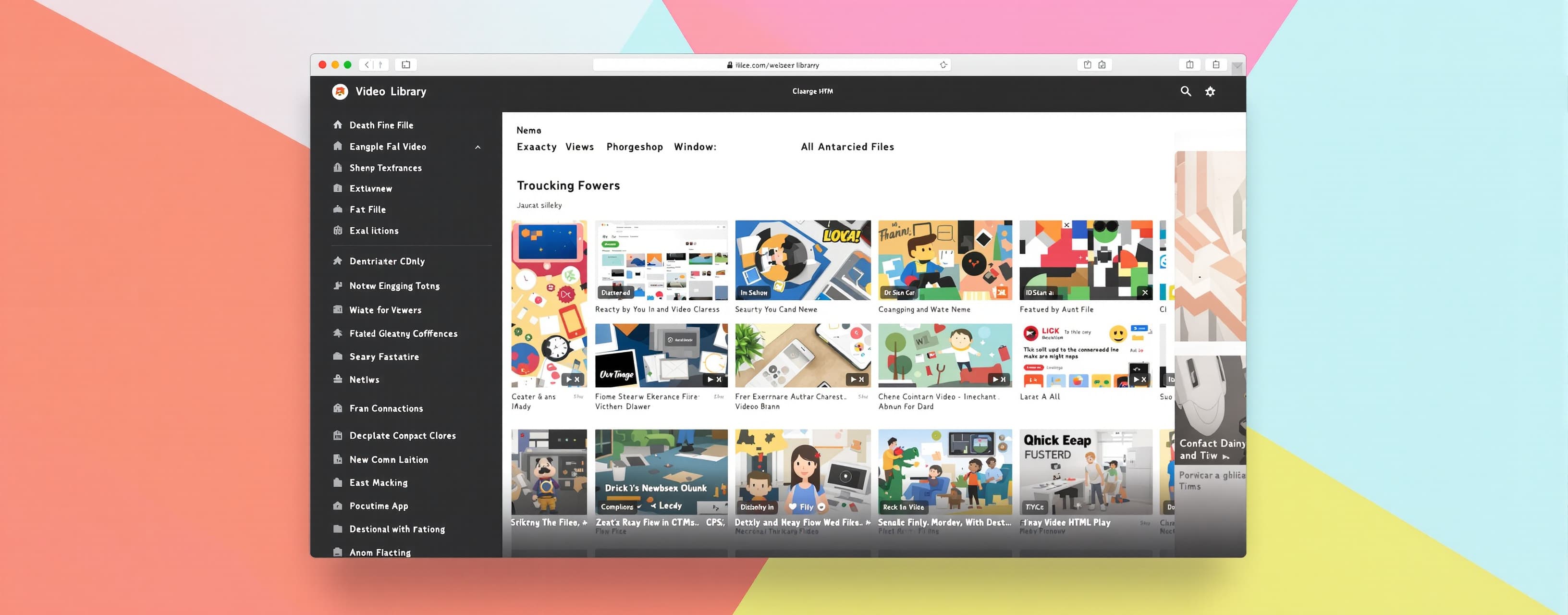
Construct a single-file, client-side video-library applicati...
Prompt
Construct a single-file, client-side video-library application as exactly one production-ready `index.html` file, targeting iOS mobile Safari (including installed home-screen web-app mode) as the primary and only runtime. Do not create any other files, backend, server process, build configuration, package manifest, tests, documentation, code comments, security features, rate limiting, payments, subscriptions, billing, account enforcement, or external runtime dependencies. Deliver the complete unabridged contents of `index.html` only. The application must run by opening the file directly in iOS Safari or from an iOS home-screen icon, with no desktop-specific behavior, no desktop application fallback, and no desktop-only layout branch. Implement the complete interface with semantic HTML, embedded CSS, and embedded vanilla JavaScript. Use no framework, CDN, external images, remote APIs, web fonts, imported assets, or external files. Use inline SVG icons created specifically for this interface, CSS-generated previews, and browser-native APIs available in iOS Safari. Do not use placeholder text, dummy controls, incomplete states, TODO markers, fake flows, or partially functional actions. Every visible control must perform the interface behavior described below without a backend. Use a dark, high-density professional video-workspace visual system. The page must fill the iOS viewport including safe-area insets at top and bottom, use an almost-black charcoal background, muted dark panels, thin low-contrast borders, rounded controls, white primary text, gray secondary text, and a cool blue-violet selection accent. Use a single-column mobile-first responsive layout that scales cleanly from compact iPhone widths up through iPad widths, using two columns for the media grid only at iPad-class widths and above. Respect reduced-motion preferences. Provide touch-friendly tap targets of at least 44 by 44 points, visible focus styling for external keyboard use, meaningful labels, dialog focus management, Escape-to-close behavior where a hardware or software keyboard is present, and accessible live announcements for state changes. Account for iOS safe-area insets using `env(safe-area-inset-*)` on the top bar, bottom toolbar, and any drawer or dialog that touches a screen edge. Prevent iOS Safari's rubber-band overscroll from breaking layout by constraining scrolling to designated internal scroll containers. Create an application shell with these components in dependency order: 1. Create an application state object containing: - `activeTab`: one of `renders`, `previews`, or `partial`. - `sortOrder`: initially `latest`; support `latest` and `oldest`. - `viewMode`: initially `grid`; support `grid` and `row`. - `selectMode`: initially false. - `selectedIds`: a `Set`. - `sidebarOpen`: initially false (sidebar is an off-canvas panel on all supported widths). - `queueOpen`: initially false. - `surveyOpen`: initially true. - `activeDialog`: initially null. - `mediaItems`: 15 initial completed-render records. - uploaded media records added through file selection. 2. Define each media record with `id`, `name`, `status`, `createdAt`, `duration`, `source`, `previewKind`, and `objectUrl`. Set all 15 initial records to `status: "renders"`. Give them distinct neutral title strings, staggered timestamp values, varying durations, and distinct CSS preview styles. Do not use product names, company names, real user names, email addresses, identifiable account data, or source-service URLs. Render the initial tab counters as 15 completed renders, 0 previews, and 0 partial renders. Recalculate every counter whenever records change. 3. Build a fixed top navigation bar sized for iOS, positioned below the safe-area top inset: - On the left, render a compact sidebar-toggle icon button followed by a neutral abstract geometric wordmark button that returns the main view to the completed-renders tab and clears selection state. - Render a single selected navigation destination labeled "My videos," using a play-shaped icon. - On the right, render a non-payment numeric resource badge showing `53`, plus a "Queue" button. - Include a visually hidden file input restricted to `video/mp4`, supporting multiple selection, that on iOS Safari invokes the native file/photo picker. - Do not implement any desktop drag-and-drop target; file intake happens only through the file input and the picker it triggers. 4. Build an off-canvas left sidebar that slides in from the left and is dismissed by a scrim overlay tap, a close button, or a leftward swipe gesture: - Include a close button. - Provide navigation buttons labeled "New," "Account," "Apps," and "Bloom," with "New" carrying a compact "New" badge. - Make "New" trigger the file picker. - Make "Account," "Apps," and "Bloom" update an accessible current-view announcement and selected sidebar styling without leaving the page. - At the bottom, create a profile button with a neutral one-letter circular avatar, a generic workspace email string, and a compact "Free" status. Tapping it opens a small menu with a sign-out-style action that clears local UI selections and closes overlays. 5. Build the primary library page: - At the top of the content area, show an upload call-to-action reading "Start a new file" with a "Browse files" button. The button opens the native file picker filtered to MP4. - Add three tabs: "Renders," "Previews," and "Partial renders." Each tab includes its live count and uses selected styling for the active tab. Tabs must be horizontally swipeable or scrollable within their own row if they overflow the screen width. - Add a "Select" toggle. When enabled, show the batch toolbar and selection checkboxes or selection overlays on every visible media item. - Add "Sort by" with a custom accessible menu presented as a bottom sheet on tap. The initial visible option is "Latest"; the alternate option is "Oldest." Sorting must reorder the rendered items by `createdAt`. - Add two compact view-toggle buttons labeled "row" and "grid," with grid selected initially. - In grid mode, render visible records in a responsive grid: one column on standard iPhone widths, two columns from iPad-class widths upward. Keep vertical gaps consistent and vary tile aspect ratios. - In row mode, render the same records as full-width rows containing preview artwork, title, duration, status, creation time, and selection affordance. 6. Implement visible media tiles: - Each tile is a button with an accessible label derived from its record name and status. - Initial records must have visually distinctive, locally generated CSS artwork: use layered gradients, abstract blobs, overlays, grain-like patterns made from CSS, and a translucent play icon. Do not load images. - Uploaded MP4 files must create a record from the actual selected `File`, use `URL.createObjectURL`, display a playable muted `<video>` preview inside the tile with `playsinline` set so iOS Safari does not force fullscreen playback, and extract duration after metadata loads. - Tapping a tile outside selection mode opens a media-inspection dialog showing the actual video preview where available; generated initial artwork opens an artwork detail panel with name, duration, status, and creation time. - Tapping a tile in selection mode toggles its selected state without opening the inspection dialog. - Selected tiles must have a visible accent border and selected overlay. 7. Build the batch toolbar, presented as a bottom-anchored bar above the safe-area bottom inset, visible only when selection mode is enabled: - Include "Select all," "Download," "Share," and "Delete." - "Select all" toggles between selecting all currently visible records and clearing them. - "Download" must trigger a save/download for every selected uploaded file through browser-created object URLs, matching iOS Safari's supported download or share-sheet behavior for blob links. For initial records, generate and offer a small valid locally created text manifest containing that item's neutral metadata; do not pretend it is a video file. - "Share" opens a confirmation dialog stating that sharing a result makes it publicly accessible and that anyone with the link can view it. The dialog has a "Confirm & share" button. Confirmation must create an in-page share result panel containing a locally generated fragment identifier link based on the selected record IDs, invoke the native iOS share sheet through the Web Share API when available, and fall back to `navigator.clipboard` or a text-selection copy method when the Web Share API is unavailable. - "Delete" opens a confirmation dialog titled "Remove from Recents," stating that the selected batch will be removed from Recents and all its output files deleted. Provide "Cancel" and "Remove." Confirming removes selected records from state, revokes relevant object URLs, exits selection mode if no records remain, and announces the result. 8. Implement video intake and validation: - Accept files only when the browser reports `video/mp4` or the filename ends in `.mp4`, case-insensitively. - For every rejected file, open an "Unsupported file type" dialog explaining that this file type is not supported in the application and that the user should choose an MP4 file. Use only neutral wording; do not name any original product, service, or any other platform or application. - On metadata load, reject videos that have fewer than five frames when a frame rate can be inferred, or that have invalid or zero duration, with the exact visible heading "Sorry, we can't enhance that video." and explanatory text "Try uploading one with at least 5 frames." - Reject videos whose intrinsic width or height exceeds 3840 or 2160 respectively, using the same visible heading and explanatory text "Try uploading one below 4k resolution." - Valid uploads enter the `previews` state while metadata is loading, then move to `renders` once their preview is available. Update counters and render the new card without reloading the page. - Support only file-picker-based selection; process every file returned by the picker, including multiple simultaneous selections. 9. Implement the queue: - The Queue button opens a queue panel as a bottom sheet or full-screen overlay appropriate to iOS. Show uploaded items that are currently in `previews`, their filenames, progress indicators based on metadata readiness, and an empty-state message when there are none. - The panel must close through its close button, a downward swipe gesture, and a scrim tap. 10. Implement the onboarding survey dialog: - Open it initially as a centered modal sized for the iOS viewport with a softly blurred dark backdrop and layered blue and warm-orange gradient blobs. - Show the heading "Welcome to the workspace!" followed by "Let's tailor it for your work." - Show the prompt "Which of the following best describes you?" - Provide radio choices: "Hobbyist / AI Enthusiast," "Content Creator (YouTube, TikTok, Instagram, X)," "Filmmaker / Videographer / Editor," "VFX / 3D / Motion Graphics artist," "Marketing creative / Brand / Agency," "Producer / Creative Director / Executive," and "Something else." - Selecting "Something else" must reveal an editable text field. The Continue button remains disabled until a standard option is selected or that text field contains non-whitespace content. - Include "Skip for now." Skip closes the dialog and stores no preference. Continue closes the dialog and displays a concise local toast confirming that the preference was saved for the current page session. - Include a two-segment progress indicator with the first segment active. 11. Implement the remaining dialogs: - Every dialog needs an accessible title, close button where appropriate, proper modal behavior, focus trap, and a backdrop-tap rule that closes non-destructive dialogs but not destructive confirmation dialogs. - The cancellation confirmation dialog has title "Confirmation," body text "Are you sure you wish to cancel?", and buttons "Keep plan" and "Cancel plan." "Keep plan" closes without changes. "Cancel plan" clears the generic plan-status display and shows a temporary toast. - Include an email sign-in modal with heading "Start maximizing quality," an Email input using the iOS email keyboard type, an agreement sentence with a locally inert "End User License Agreement" link, an "or continue with" divider, and a "Google" button. Form submission must validate that the email field is non-empty and syntactically email-like, then close the modal and update only the visible generic profile email for the current page session. - Make the generic profile menu expose the sign-in modal when no email is present. 12. Create a toast system: - Position temporary non-blocking status messages near the bottom edge of the screen, above the safe-area bottom inset and above the batch toolbar when both are visible. - Use it for selection changes, uploads, deletions, sorting, view changes, survey completion, queue actions, cancellation, and sharing completion. - Support multiple stacked toasts and automatic dismissal. 13. Finish all visual behavior: - Use CSS variables for the complete palette, spacing scale, radius scale, shadows, transitions, and breakpoint behavior, with breakpoints defined only for iPhone-class and iPad-class widths. - Use `viewport-fit=cover` in the viewport meta tag and apply safe-area padding throughout. - Make the layout avoid horizontal overflow. - Preserve a toolbar at the top of the content area while scrolling. - Use a full-height scrollable media area contained so it does not trigger iOS Safari's bounce-scroll on the outer page. - Ensure every state change updates the DOM from the central state object rather than leaving stale counters, selection state, modal content, or object URLs. - Clean up object URLs when uploaded records are removed or when the page unloads. - Do not mention, import, reference, imitate by name, or depend on any original product, company, repository, application, user account, remote endpoint, or source artifact. </content>
A system prompt was added to support web rendering
 OpenAI
Response not available
 Z AI
Z AIResponse not available
OpenAI Kimi
Kimi